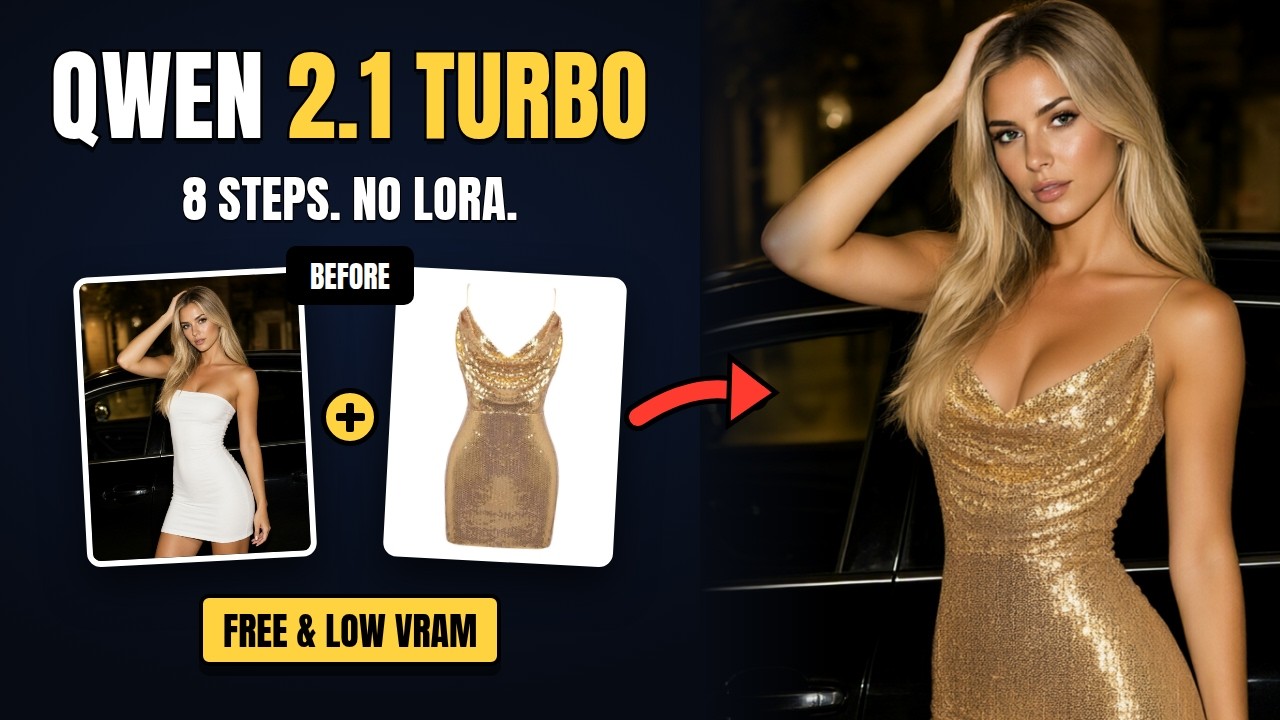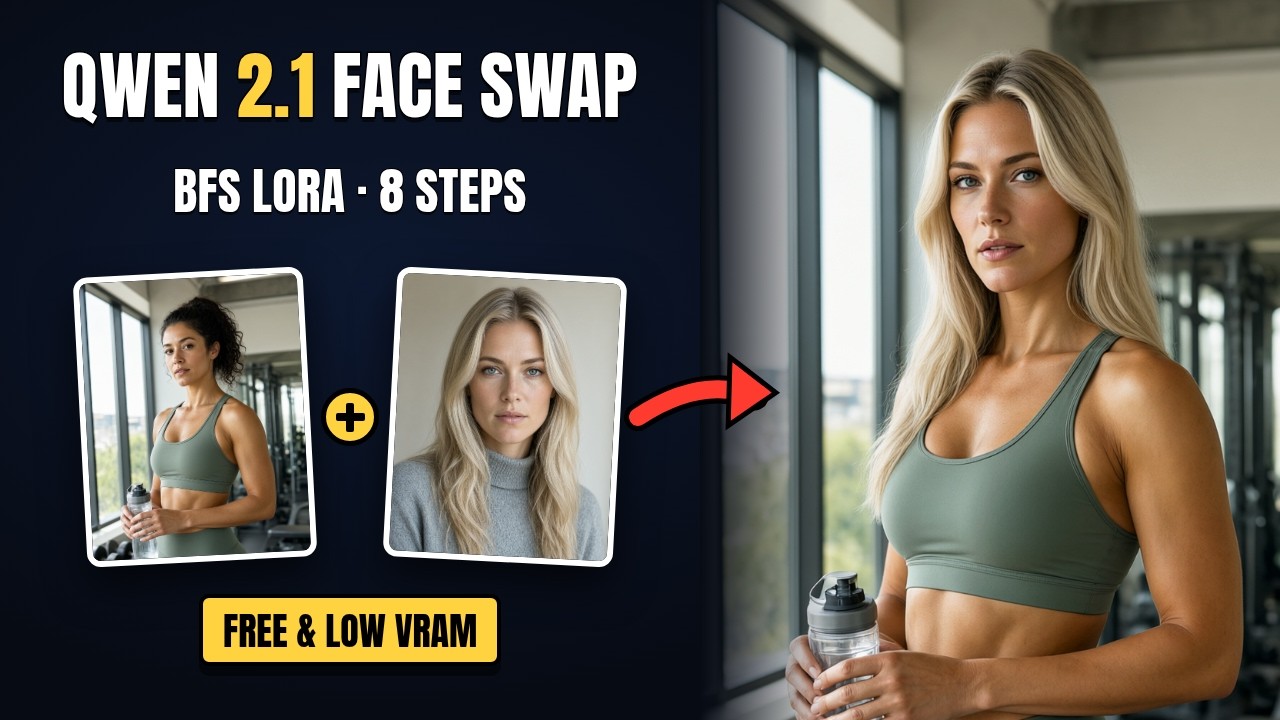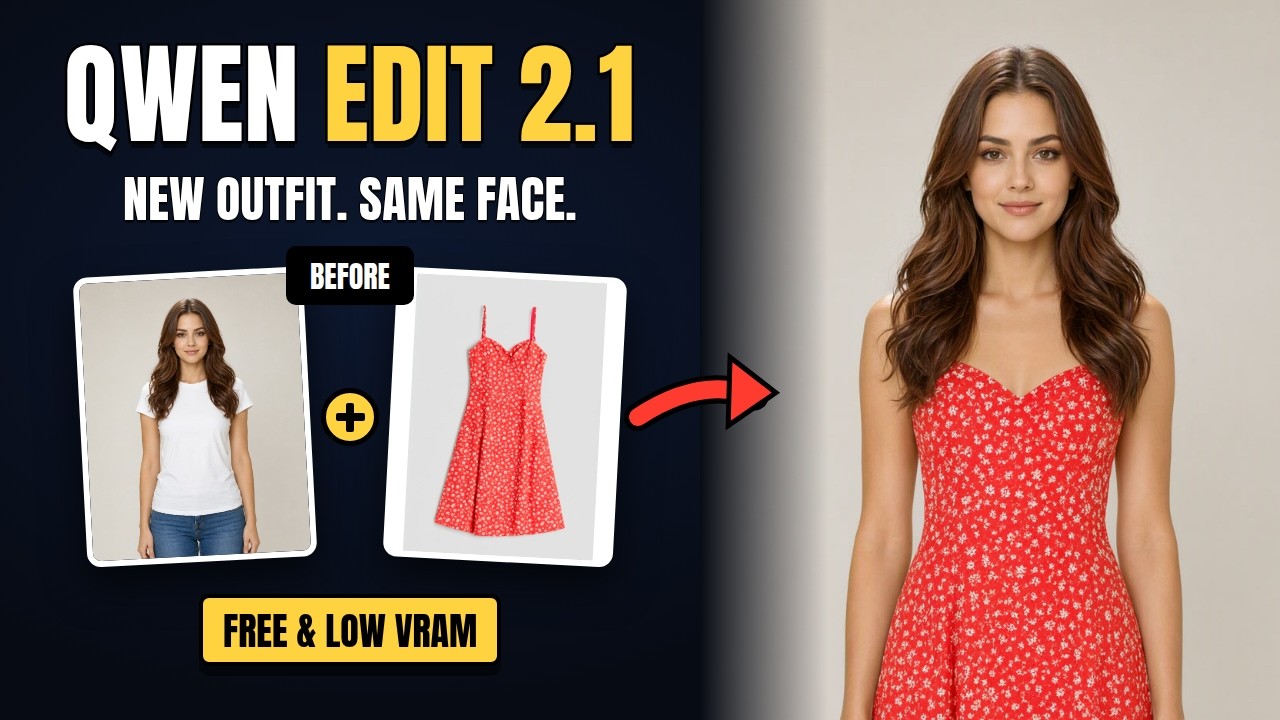
Qwen Image 2.1 is a unified 7B model that does both text-to-image and image editing. Load a photo, describe the change in plain language — "change the jacket to red", "put this person in a snowy street", "remove the background" — and it applies the edit while keeping the person, product and scene intact. This guide walks through the free ComfyUI edit workflow from the video, including a GGUF path for lower-VRAM cards.
What Qwen Image 2.1 Edit Can Do
Free Workflows
There are three free workflows for this model, each with model links and setup notes:
- Qwen-Image 2.1 Image Edit — the workflow shown in this video, with a GGUF loader path, an optional LoRA slot and an Image Comparer.
- Qwen-Image 2.1 Turbo Edit (4–6 step) — community turbo LoRAs wired in so edits finish in 4–6 steps at CFG 1.
- Qwen-Image 2.1 Text-to-Image — the generation side of the same model.
Custom Nodes
- ComfyUI Manager — to install anything missing.
- ComfyUI-GGUF — only needed for the low-VRAM GGUF path.
- rgthree-comfy — the Image Comparer and the Fast Groups Bypasser.
Model Files and Folders
Pick one diffusion model and one text encoder for your VRAM. The VAE is always required.
| File | What it's for | ComfyUI folder |
|---|---|---|
qwen_image_2.1_int8_convrot.safetensors | Default diffusion model (~7 GB) | models/diffusion_models/ |
qwen_image_2.1_Q5_K_M.gguf | Low-VRAM option (~4–7 GB depending on quant) | models/unet/ |
qwen3vl_8b_int8_convrot.safetensors | Standard text encoder | models/text_encoders/ |
qwen3vl_8b_w4a8.safetensors | Extra low-VRAM text encoder | models/text_encoders/ |
qwen_image_2.1_vae_bf16.safetensors | VAE — required | models/vae/ |
Walking Through the Workflow
- Load your source photo in the Load Image node.
- Use the Fast Groups Bypasser to choose the standard model or the GGUF path.
- Write the edit as an instruction. For multi-image edits, add references as extra images — the output follows image 1's canvas.
- Keep the custom resolution close to the resized source image, or the edit can shift.
- Run it, then check the result against the original in the Image Comparer.
The LoRA slot is optional — load a Qwen Image LoRA if you have one, or leave it bypassed.
Going Faster
Standard edits take 20+ steps. Two faster options came out after this video:
- The turbo LoRA workflow (4–6 steps).
- The official Qwen Image 2.1 Turbo model, which bakes the speed into the model so no LoRA is needed — see the Turbo guide.
📦 Want to skip the setup?
The Qwen-Image 2.1 All-In-One installer sets up ComfyUI, the custom nodes and both workflows, with a download menu to pick your VRAM tier.
Get the All-In-One Installer →