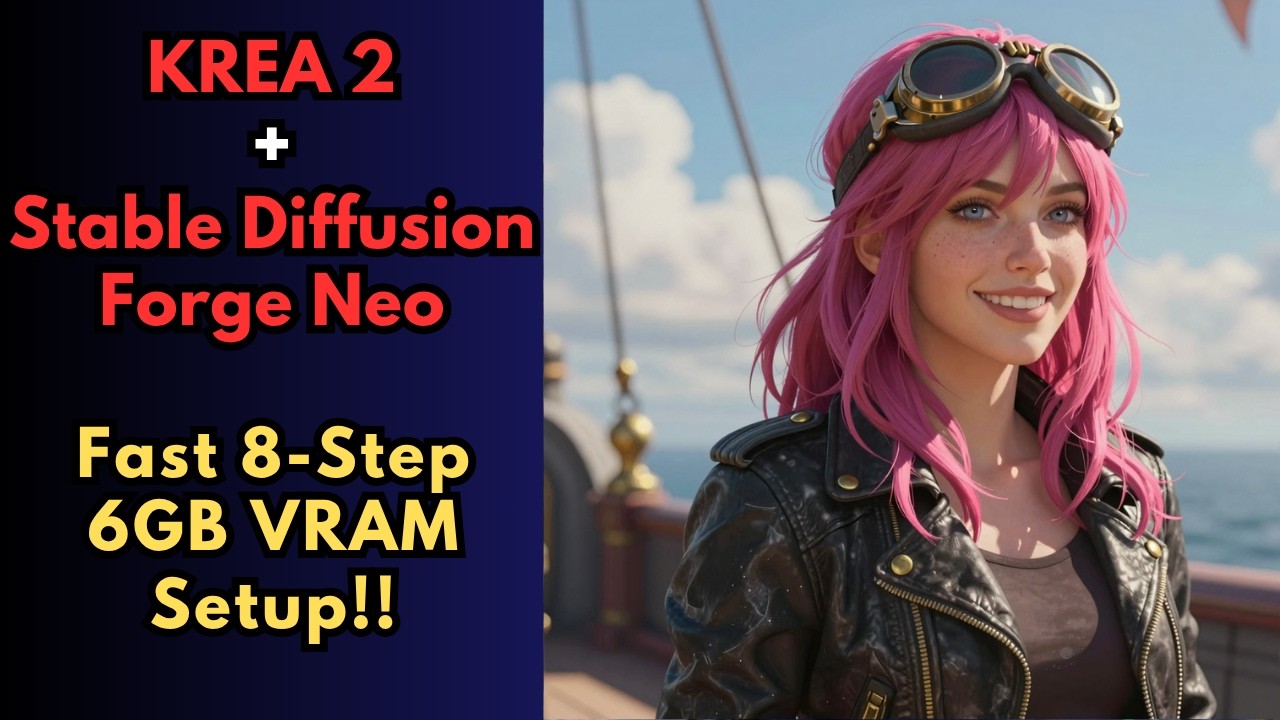
Krea 2 is an image model built for fast, high-quality generation with a strong focus on realism, prompt accuracy and style control — it produces clean, detailed images with very little prompt engineering. Stable Diffusion Forge Neo now supports it fully, so you can run Krea 2 from a simple web UI instead of ComfyUI.
Why Forge Neo for Krea 2
Forge Neo is the continuation of the last Forge release. It runs SD, Flux, WAN 2.2, Z-Image Turbo and Krea 2 in one lightweight interface, with performance and simplicity as the focus — no node graph to wire up. If you haven't installed it yet, follow how to install Forge Neo on Windows.
Model Files
| File | What it's for |
|---|---|
krea2_turbo-Q3_K_M.gguf (or another GGUF quant) | Krea 2 Turbo — low VRAM |
krea2_turbo_fp8.safetensors | Krea 2 Turbo FP8 — 12 GB+ VRAM |
qwen3vl_4b_fp8_scaled.safetensors | Text encoder |
qwen_image_vae.safetensors | VAE |
Using It
- Make sure Forge Neo is up to date — Krea 2 support needs a recent version.
- Place the model, text encoder and VAE in Neo's model folders and select them at the top of the UI.
- Add any Krea 2 LoRAs under the LoRA tab.
- For text-to-image, confirm the correct models are selected, then generate.
FFmpeg should be installed too.
Prefer ComfyUI? Free Krea 2 Workflows
Since this video, several free Krea 2 workflows have been released for ComfyUI:
- Krea 2 Turbo 4-Step Distillation LoRA — about half the generation time.
- Krea 2 Turbo 2-Step Distillation LoRA — near-instant images.
- Krea 2 Turbo + Clio Style Library — ~281 art styles from a dropdown.
- Krea 2 QuadView — four-view character turnaround sheets.
📦 Want to skip the setup?
The Krea 2 Forge Neo installer sets up Sage Attention 2, Flash Attention 2 and Triton, and downloads the GGUF model, text encoder and VAE for you.
Get the Installer →