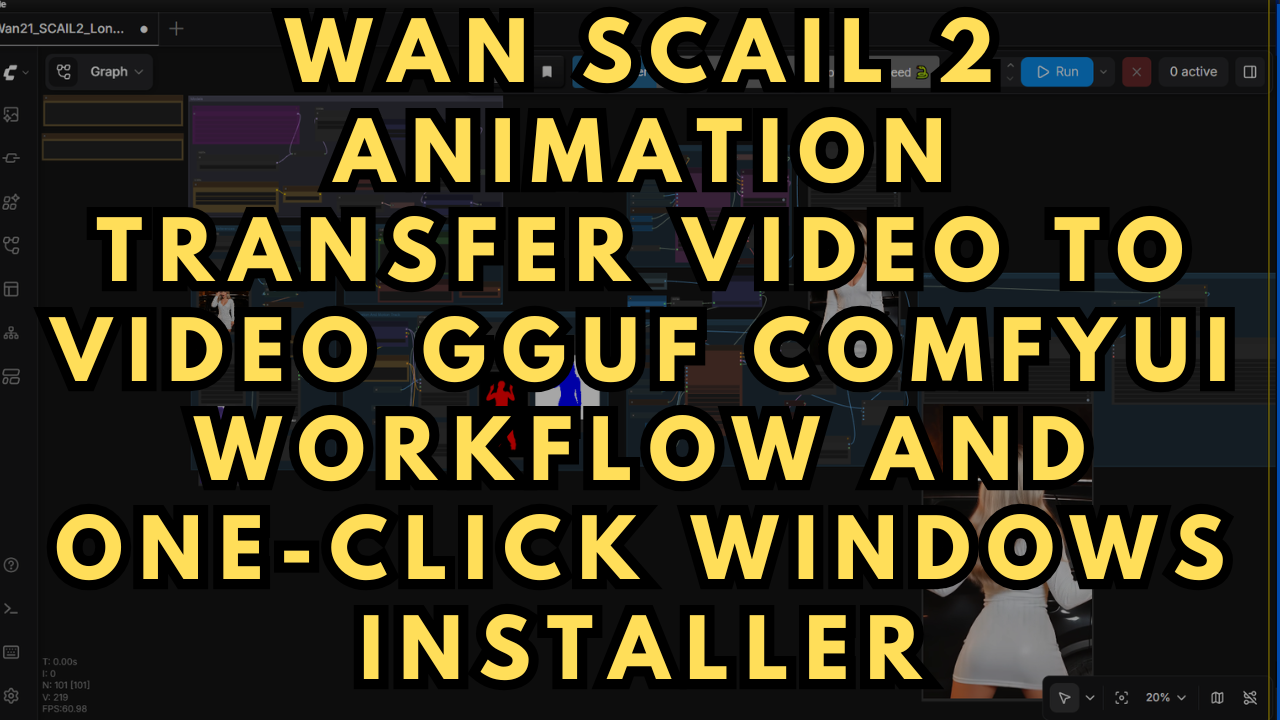
WAN SCAIL 2 Animation Transfer Video to Video GGUF ComfyUI
$4.00
✓ In Stock⭐ Get all 84+ installers for $10/month
Local Lab Pro gives you instant access to all 84+ installers and workflows we've ever made — plus every new release the moment it drops. No buying individually. One membership, everything included.
View Local Lab Pro membership →Secure checkout via Wix — or get all 84+ with Pro
// About this product
WAN SCAIL 2 introduces a major leap forward in AI video-to-video animation transfer, delivering smoother motion consistency, improved temporal coherence, and significantly better prompt adherence compared to previous WAN 2.1 workflows. This updated model excels at preserving character identity across frames while accurately transferring motion from a source video, making it ideal for stylized animation, cinematic edits, and AI-assisted content creation. Key improvements include reduced flickering, enhanced edge stability, and more efficient diffusion steps, allowing high-quality outputs at lower step counts.
The ComfyUI workflow is designed to fully leverage WAN SCAIL 2’s capabilities using the standard FP8 and FP16 Diffusion models. One of the biggest upgrades I made to it is the custom tweak enabling GGUF model compatibility inside ComfyUI, drastically lowering VRAM requirements without sacrificing too much visual fidelity. This means users with 16GB–24GB VRAM GPUs can now run animation transfer workflows that previously required significantly higher memory. However be aware that resolution sizes for your generated video may need to be lowered if your running on GPU's under 24 GB VRAM.
The included one-click Windows installer simplifies the entire setup process by preconfiguring ComfyUI, required custom nodes, and essential models. Instead of manually resolving dependencies, users can launch directly into generating AI animation content within minutes.
Preloaded Models Within the Installer (Low VRAM)
-
umt5_xxl_fp8_e4m3fn_scaled.safetensors (ComfyUI\models\clip)
Hugging Face Link -
wan_2.1_vae.safetensors (ComfyUI\models\vae)
Hugging Face Link -
SCAIL-2-Q3_K_M.gguf (ComfyUI\models\unet)
Hugging Face Link -
2xLexicaRRDBNet_Sharp.pth Upscale model (ComfyUI\models\upscale_models)
Hugging Face Link -
lightx2v_I2V_14B_480p_cfg_step_distill_rank256_bf16.safetensors Lightx2v LoRA (ComfyUI\models\loras)
Hugging Face Link -
clip_vision_h.safetensors (ComfyUI\models\clip_vision)
Hugging Face Link -
sam3.1_multiplex_fp16.safetensors (ComfyUI\models\checkpoints)
Hugging Face Link
The standard WAN SCAIL 2 diffusion models (FP16 and FP8) are not bundled with this installer. You can grab them from the official Comfy Org repository and drop them into your ComfyUI/models/diffusion_models folder:
WAN 2.1 SCAIL 2 FP8 Diffusion Models
Custom Nodes w/ commands needed for Portable Windows package
-
ComfyUI Manager - https://github.com/ltdrdata/ComfyUI-Manager
Command to install requirements:.\python_embeded\python.exe -m pip install -r .\ComfyUI\custom_nodes\ComfyUI-Manager\requirements.txt
Use the ComfyUI Manager’s Install missing custom nodes feature to install any additional nodes that may not work initially after installation.
Speed and Efficiency
-
Generate 10-second 480p videos at 16fps (8 steps) in 10–20 minutes on an RTX A4000 (16GB VRAM) and 32 GB RAM.
-
The workflow scales with your hardware, so you can expect 720p and higher frame rates (24fps+) on more powerful GPUs.
System Requirements
-
Nvidia RTX 30XX / 40XX / 50XX GPU (FP16 supported)
-
CUDA-compatible GPU with 16GB+ VRAM (24GB+ recommended)
-
Windows OS
-
Minimum 40GB free storage
What’s Included
-
Portable ComfyUI Windows Installer, fully configured for WAN SCAIL 2 video-to-video animation transfer
-
Automated downloads for all required models and nodes
-
A user-friendly workflow optimized for both beginners and advanced users
Usage Notes
-
Load in either the GGUF model or WAN SCAIL 2 FP8 model (both compatible with the node)
-
Upload a reference video to extract motion from
-
Upload an image of your character in the target setting to transfer motion to
-
Enter a prompt describing the movements in the generated video
-
Adjust resolution, duration, and frame rate; higher settings require more compute
-
The workflow adapts to your hardware, so start with modest settings and scale up as needed