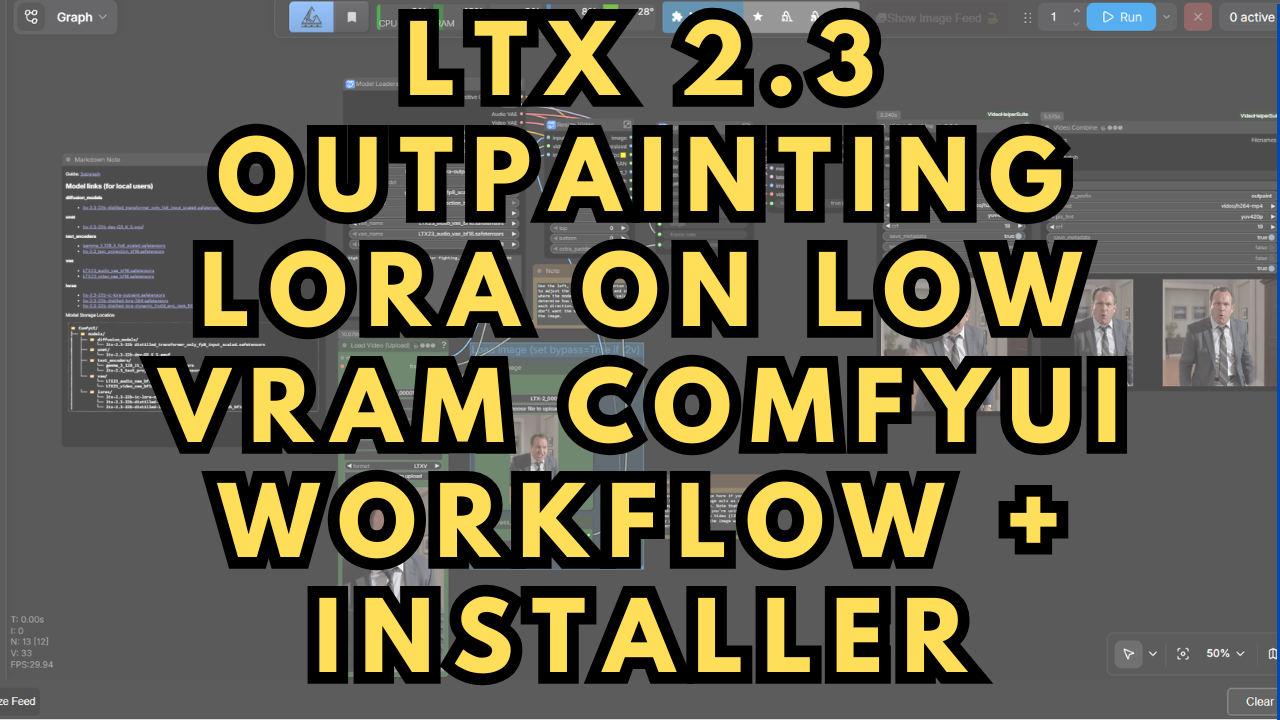
LTX 2.3 Outpainting LoRA on Low VRAM ComfyUI Workflow + Installer
$4.00
✓ In Stock⭐ Get all 84+ installers for $10/month
Local Lab Pro gives you instant access to all 84+ installers and workflows we've ever made — plus every new release the moment it drops. No buying individually. One membership, everything included.
View Local Lab Pro membership →Secure checkout via Wix — or get all 84+ with Pro
// About this product
LTX-2.3 22B IC-LoRA Outpaint has just been released, introducing an advanced generation of AI video synthesis designed for creators who want cinematic quality and detailed motion, even on mid-range hardware. This version extends Lightricks’ LTX 2.3 architecture with the new IC-LoRA Outpaint module—empowering users to expand both still images and short clips into immersive, high-resolution video sequences. Text-to-video and image-to-video generation now hybridize into a single workflow, producing seamless, story-driven transitions and intelligent motion flow.
I’ve updated the default ComfyUI workflow found on the original Hugging Face repository to make it friendlier for users with lower VRAM GPUs. The new version leverages the LTX 2.3 GGUF models—known for their lightweight deployment—while maintaining visual fidelity and preserving output dynamics.
To simplify setup, I’ve built a one-click Windows installer that automates configuration, ComfyUI nodes installation, and model downloads so you can start generating text-to-video or image-to-video content immediately.
Preloaded Models Within the Installer (Low VRAM)
-
ltx-2.3_text_projection_bf16.safetensors – Hugging Face Link
-
gemma_3_12B_it_fp8_scaled.safetensors – Hugging Face Link
-
LTX23_audio_vae_bf16.safetensors – Hugging Face Link
-
LTX23_video_vae_bf16.safetensors – Hugging Face Link
-
ltx-2.3-22b-dev-Q3_K_S.gguf – Hugging Face Link
-
ltx-2.3-22b-distilled-lora-dynamic_fro09_avg_rank_105_bf16.safetensors (LoRA) – Hugging Face Link
-
ltx-2.3-22b-distilled-lora-384.safetensors (LoRA) – Hugging Face Link
-
ltx-2.3-22b-ic-lora-outpaint.safetensors (LoRA) – Hugging Face Link
The installer omits the standard LTX 2.3 22B checkpoint models (BF16, FP8) to minimize file size, but they can be easily downloaded from Kijai’s official repository:
LTX-2.3 22B Diffusion Models
Custom Nodes w/ commands needed for Portable Windows package
-
ComfyUI Manager - https://github.com/ltdrdata/ComfyUI-Manager
Command to install requirements:.\python_embeded\python.exe -m pip install -r .\ComfyUI\custom_nodes\ComfyUI-Manager\requirements.txt
Use the ComfyUI Manager’s Install missing custom nodes feature to install any additional nodes that may not work initially after installation.
Speed & Performance
On mid-range systems, such as a 16 GB VRAM GPU with 62 GB system RAM, you can extend a 10-second video in about 4–5 minutes. The workflow intelligently balances resource allocation and GPU load to maintain smooth playback, detailed textures, and realistic motion across sequences. It’s perfect for creators who need stable long-form AI video generation without investing in high-end hardware.
System Requirements
-
NVIDIA RTX 30XX / 40XX / 50XX GPU (FP16 supported)
-
CUDA-compatible GPU (minimum 12–16 GB VRAM, 16 GB+ recommended)
-
Windows OS
-
Minimum 50 GB free storage
What’s Included
-
Portable ComfyUI Windows Installer (pre-configured for LTX 2.3 Outpaint T2V and I2V)
-
Automated model and node setup
-
Optimized video-length workflows for both short and extended sequences
-
Simplified interface for beginners, plus expandable nodes for advanced users
Usage Notes
This workflow is fully compatible with LTX 2.3 22B GGUF and designed for efficient use on lower VRAM setups.
-
Download the batch file and place it in an empty folder dedicated for this ComfyUI Install.
Here are a few quick recommendations to get the best output:
-
Use rich, descriptive text prompts for improved scene coherence and motion realism.
-
For Outpainting, start with an existing video or high-resolution reference image.
-
If using Image-to-Video, set bypass_i2v = False.
-
If using Text-to-Video, set bypass_i2v = True to skip the reference image.
-
-
Adjust left, right, top, and bottom values to control outpainting boundaries and composition.
-
Optimize resolution for your GPU—higher resolutions require more VRAM.
-
Access advanced prompt customization by opening the subgraph’s prompt node and expanding the right-hand settings panel.