This one's a little different. Instead of a single workflow or installer, this is the master list — every RunPod template I've built and maintain, all in one place, with the tutorial video for each and the GPU I'd actually rent to run it.
If you've ever wanted to try WAN 2.2, LTX 2.3, Flux, Qwen, Hunyuan 3D, or LoRA training but your GPU couldn't handle it, this is the page to bookmark. I keep it updated as I add templates, so it should stay the go-to reference rather than something that goes stale in a month.
The signup bonus (and how to actually get it)
RunPod gives both of us bonus credits when you sign up through a referral link and load your first $10.
- Non-European accounts get a randomized bonus between $5 and $500.
- European accounts get a fixed $5.
Being straight with you about that number: the random bonus is weighted, and most people land near the bottom of the range. Treat it as a credit match with a small chance of something much better, not a lottery ticket. Even $5 is a few hours on a 4090.
- Sign up with Google SSO. RunPod's referral program requires it. If you create the account with an email and password instead, the referral doesn't register — no bonus for you, no credit for me. This is the single most common way people miss out.
- Credits expire after 90 days and are non-transferable. Don't claim them and sit on them.
The bonus unlocks once you've loaded $10. Use any template link below to sign up.
What cloud GPU actually solves
I build low VRAM workflows for a reason — most people don't have a 4090 sitting in their case. But there's a ceiling to what quantization can fix, and if you've hit it, cloud GPU is the answer:
- You don't have an NVIDIA GPU at all. Mac, laptop, integrated graphics — doesn't matter. Everything runs in your browser.
- You have 6–8 GB VRAM and you're tired of Q3 quants. Rent a 24 GB card for an hour and run the full precision model.
- You want to test before you buy. Renting a 5090 for two hours costs about two dollars. That's a much better way to find out if a GPU is worth $2,000 than reading benchmarks.
- Your generation takes 15 minutes locally. On a proper card it takes one. When you're iterating on a prompt, that difference is the whole experience.
- You want to train a LoRA. Training is where consumer VRAM really falls over, and where renting makes the most sense.
- You don't want to install anything. Every template below is preconfigured. No Python, no CUDA versions, no dependency conflicts.
Getting started — full setup walkthrough
Clicking any template link takes you straight to the deploy page with my template preloaded. Here's the whole flow.
Step 1 — Pick your GPU
You'll see the full GPU list with live hourly pricing. A few worth knowing (prices as of July 2026):
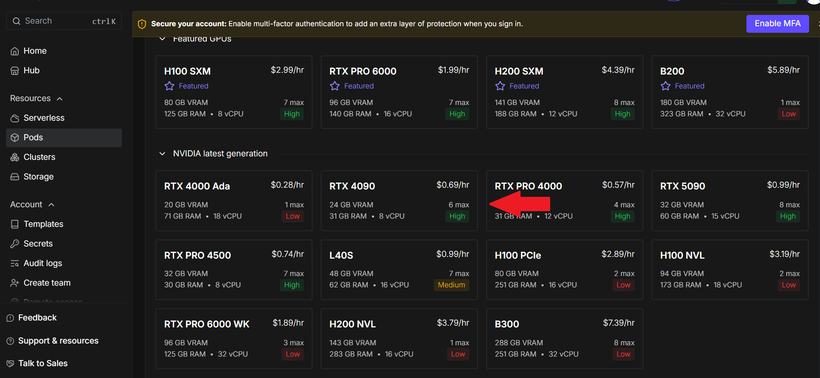
| GPU | VRAM | Approx. price | Best for |
|---|---|---|---|
| RTX 4000 Ada | 20 GB | $0.28/hr | Image generation — hard to beat on value |
| RTX PRO 4000 | 32 GB | $0.57/hr | Most ComfyUI templates — more VRAM than a 4090 for less |
| RTX 4090 | 24 GB | $0.69/hr | The reliable default for video and 3D |
| RTX 5090 | 32 GB | $0.99/hr | LoRA training and the heaviest LLMs |
| L40S | 48 GB | $0.99/hr | Longer video clips and higher resolutions |
The RTX PRO 4000 is the one to watch — 32 GB at $0.57/hr gives you more VRAM than a 4090 at a lower price. For most of my ComfyUI templates that's the best value on the board.
Step 2 — Confirm the template
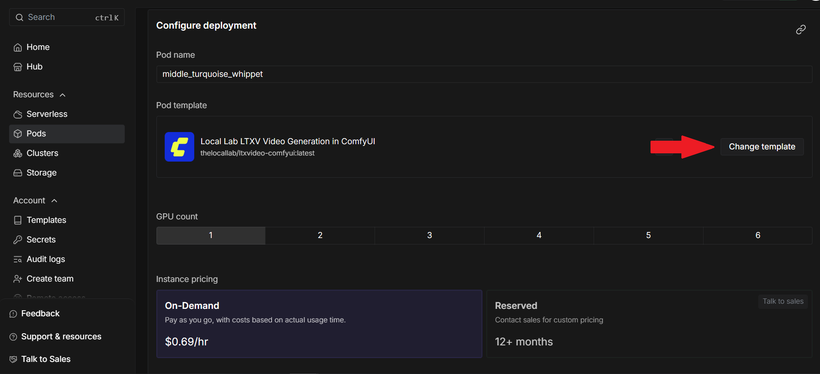
The pod template should already show my template. If it shows something else, hit Change template and search for it. Leave GPU count at 1 and On-Demand selected.
Step 3 — Set your storage
This is the step people get wrong, so read this bit carefully.
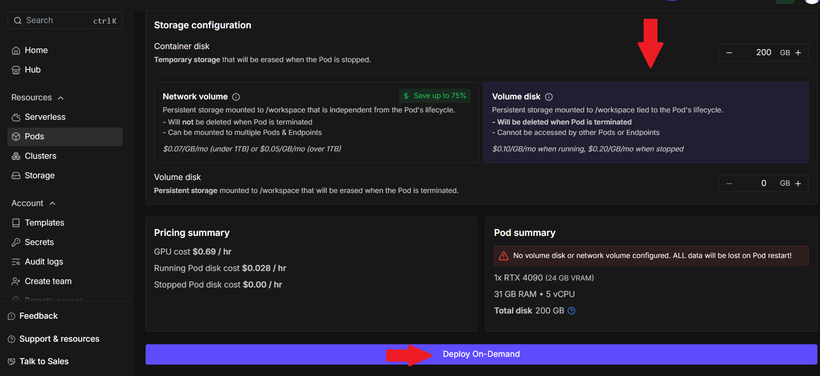
Container disk is temporary — it's wiped when the pod stops. 200 GB is plenty for any of my templates.
You'll see a red warning: "No volume disk or network volume configured. ALL data will be lost on Pod restart." That's not a bug, it's the default. If you're doing a one-off session, it's fine — just download your outputs before you stop the pod.
Then hit Deploy On-Demand.
Step 4 — Connect
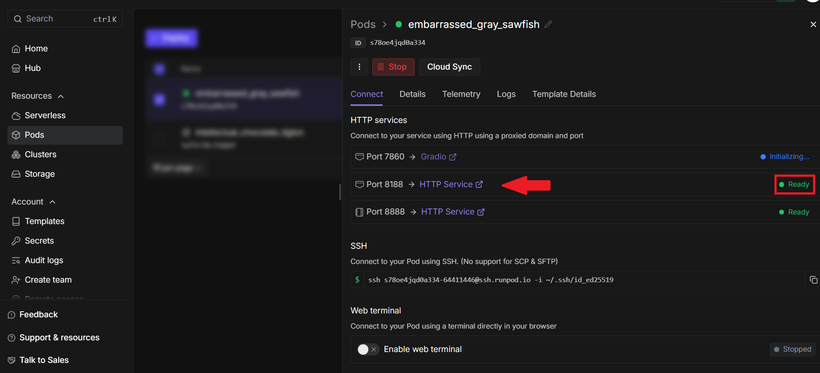
Once the pod boots, open the Connect tab. You'll see several ports:
- Port 8188 — ComfyUI. This is the one you want for the ComfyUI templates.
- Port 8888 — JupyterLab, for file management and terminal access.
- Port 7860 — Gradio, used by the non-ComfyUI templates.
Wait for the status to read Ready before clicking. If it says Initializing, the service is still starting — give it a minute rather than assuming it's broken.
Step 5 — You're in
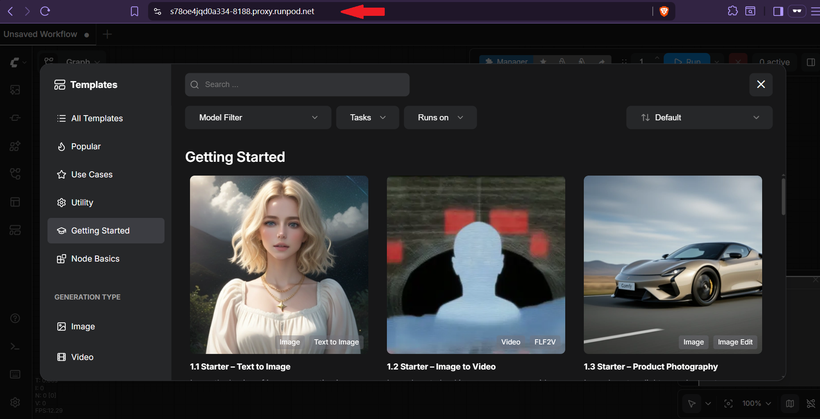
ComfyUI opens in your browser at the pod's proxy address. Everything's preinstalled. Load a workflow and go.
All my RunPod templates
Video generation
WAN Video 2.2
The workhorse for local-quality AI video without local hardware. Text to video and image to video.
- 📺 Best Local AI Video Generator — Low VRAM WAN 2.2 14B
- 📺 WAN 2.2 SVI 2.0 Pro — Long Length AI Videos I2V
WAN SCAIL 2
Character animation and motion transfer — drive a character with a reference video.
RTX 4090 24GB or higherLTXV Video Generation
LTX 2.3 in ComfyUI. Fast video generation with native audio and outpainting support.
- 📺 FASTEST Local AI Video Generator — LTX Video I2V Update
- 📺 LTX 2.3 Outpainting — Infinite AI Video on Low VRAM
WAN2GP
A simpler UI for video generation, including LTX-2 audio to video and lip sync work.
- 📺 Lip Sync Any AI Model with LTX 2.3 Audio to Video in WAN2GP
- 📺 LTX-2 AI Video — Low VRAM Image to Video with Audio
Image generation
Krea 2 Image Generation
Krea 2 Turbo in ComfyUI. One of the strongest open weight image models available right now.
RTX 4000 Ada 20GB or RTX 4090 24GBZ-Image Turbo ComfyUI
Fast image generation and face swapping with Z-Image Turbo.
RTX 4000 Ada 20GB or RTX 4090 24GB3D model generation
Trellis 2 ComfyUI
Microsoft's Trellis 2 — image to 3D model, and the best free 3D generator I've tested.
- 📺 Best FREE 3D AI Model Generator — Microsoft Trellis 2 (RunPod setup walkthrough starts at 5:34)
LoRA & model training
AI Toolkit
Train LoRAs for image and video models through a clean UI. This is what I use for consistent character work.
- 📺 Create Perfect CONSISTENT AI CHARACTERS using Z Image Turbo LoRAs
- 📺 Consistent AI Characters with WAN 2.2 LoRAs
Audio & text to speech
VibeVoice TTS
Microsoft's realistic TTS with voice cloning. Genuinely competitive with the paid services.
RTX 4000 Ada 20GBLLMs
Ollama & OpenWebUI
Run any open weight LLM with a ChatGPT-style interface. Great for models too large for local hardware.
RTX 5090 32GBTips that will save you money
- Stop your pod when you're done. Idle pods bill at the full rate. Set a phone timer if you have to.
- Use a network volume if you'll be back. $0.07/GB/month versus re-downloading your models every single session at GPU rates.
- Check availability before committing to a GPU. A Low availability card may fail to deploy and cost you time.
- Start smaller than you think. Get your prompt and settings dialled in on a 4090, then move to a bigger card only for the final high-resolution run.
- Watch the RTX PRO 4000. 32 GB at $0.57/hr undercuts the 4090 on both VRAM and price. Availability varies, but grab it when it's there.
- Download your outputs before stopping the pod unless you're on a network volume.
Prefer to run it locally?
Cloud GPU is the answer when your hardware genuinely can't keep up — but plenty of these models run fine on a consumer card with the right setup. Our free ComfyUI workflows are tuned for low VRAM, and the one-click Windows installers handle the models, nodes and CUDA versions for you.
FAQ
Do I need my own GPU to use these templates? No. Everything runs in your browser on a rented cloud GPU — Mac, laptop and integrated graphics all work fine.
How much does it cost to try a model? An RTX 4000 Ada runs about $0.28/hr and an RTX PRO 4000 about $0.57/hr, so testing a workflow for an hour costs well under a dollar.
Will I lose my models when the pod stops? Yes, unless you attach a network volume. Container disk is wiped on restart — the volume at $0.07/GB/month is what makes your models and outputs persist.
Which GPU should I pick? The RTX 4090 is the reliable default. The RTX PRO 4000 gives you 32 GB for less, and the RTX 4000 Ada is the value pick for image generation.