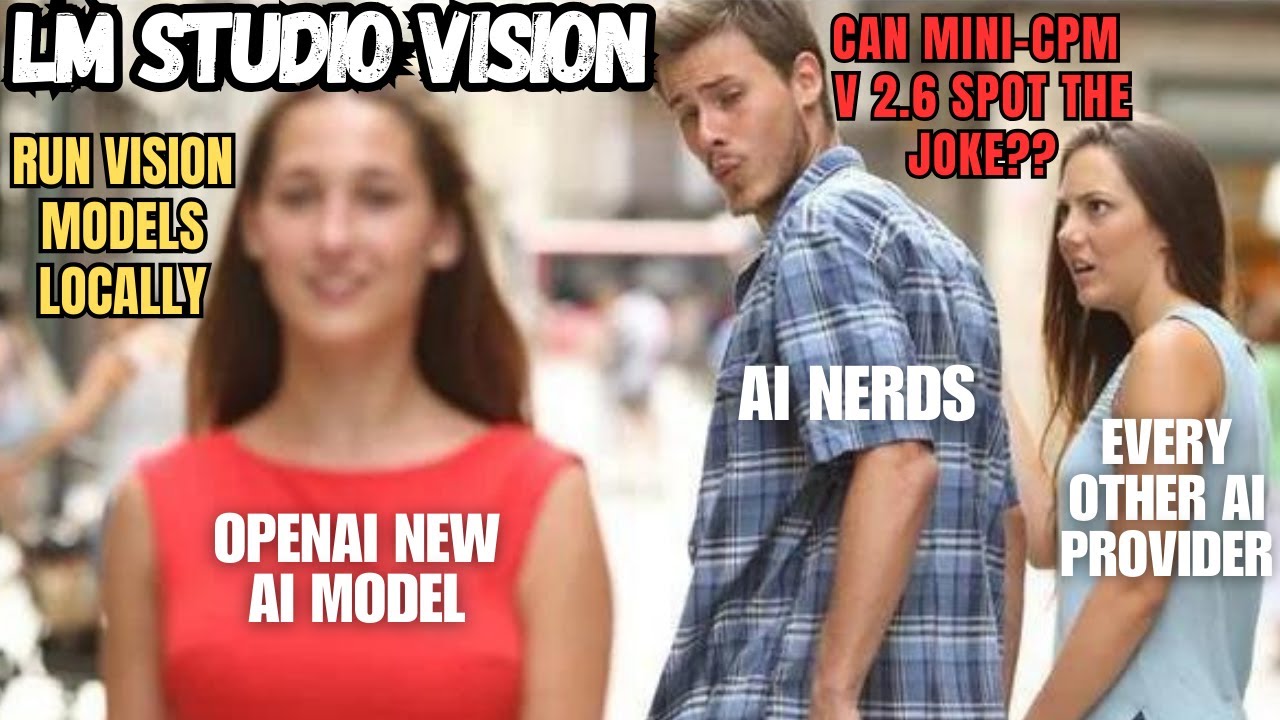
What if you could have a full conversation with an AI about any image — without that image ever leaving your computer? No cloud uploads, no terms of service worries, no sending your private photos to a server somewhere. That's exactly what local vision language models (VLMs) make possible, and the setup is easier than you might think.
In this guide we're going to walk through how to get a top-performing open-source vision model running locally on your machine using LM Studio — a free desktop app that makes the whole process remarkably straightforward.
What Are Vision Language Models?
Vision language models are AI systems that can understand and interpret images alongside text. Think of them as an LLM with eyes — you can drop an image into the chat and ask questions like:
- "What objects are in this photo?"
- "Describe what's happening in this scene."
- "Is there any text visible in this image?"
- "What mood does this photograph convey?"
The applications are enormous — from accessibility tools for visually impaired users to automating image tagging workflows, to analyzing screenshots, receipts, diagrams, or medical images privately.
Picking the Right Vision Model
The open-source vision model space moves fast. At the time this guide was originally written, MiniCPM-V 2.6 was leading the Wild Vision Arena Leaderboard — an ELO-style ranking system (similar to the LLM Chatbot Arena) where vision models compete based on real user votes.
As of 2025, the landscape has expanded significantly. Here are strong options to look for in LM Studio depending on your hardware:
- MiniCPM-V 2.6 — Excellent all-rounder, runs well on 8GB VRAM, strong at OCR and detailed image description
- LLaVA 1.6 (Mistral 7B base) — Solid general-purpose vision model, widely compatible
- Qwen2-VL — Strong at document understanding and multilingual image tasks
- Moondream 2 — Ultra-lightweight option for low VRAM systems (4GB or less)
The best approach: check the Wild Vision Arena leaderboard for the current top performers, then find that model in LM Studio.
Setting Up LM Studio
LM Studio is a free desktop application for Windows, Mac, and Linux that lets you download and run local AI models without touching the command line. It's the easiest on-ramp to local AI available right now.
Head to lmstudio.ai and grab the installer for your OS. It's free and installs like any normal application.
Open LM Studio and go to the Discover tab. Search for MiniCPM-V or LLaVA. Look for GGUF versions — these are the quantized formats that run efficiently on consumer GPUs.
Model files come in different quantization levels (Q4, Q5, Q8). A good rule of thumb: Q4_K_M gives the best balance of quality and speed for most setups. Make sure the file size fits in your GPU's VRAM — if it doesn't, LM Studio will fall back to CPU (slower but still works).
Once downloaded, click Load to bring the model into memory. Switch to the Chat tab — you'll see a paperclip or image icon in the input area, which is your cue that vision is enabled.
Click the image icon, select any photo from your computer, type your question, and hit send. The model analyzes the image entirely on your local hardware — nothing leaves your machine.
What It Can (and Can't) Do
Local vision models are genuinely impressive for:
- Describing scenes, objects, people, and settings in detail
- Reading and transcribing text in images (OCR)
- Answering specific questions about image content
- Analyzing diagrams, charts, and screenshots
- Generating alt-text for accessibility workflows
Where they still lag behind frontier cloud models:
- Complex spatial reasoning ("is object A to the left or right of object B?")
- Counting large numbers of items accurately
- Very fine-grained detail in low-resolution images
Why This Matters
The ability to run vision AI locally is genuinely new. A year ago, capabilities like these required cloud API access and significant technical setup. Today you can have a conversation about any image on your hard drive, completely offline, in under 10 minutes of setup. That's a meaningful shift for anyone who works with images professionally or just values keeping their data private.
Watch the video above for a full walkthrough — we go hands-on with model setup, image loading, and some real-world test cases to show you exactly what to expect.
Want more guides like this?
Subscribe to get new tutorials, AI tool releases, and hardware deals straight to your inbox.
📦 Want to skip the setup?
The Local Lab offers pre-configured AI installer packages so you can get running in minutes, not hours.
Browse the Store →